
What causes the black screen
According to Konami, the black screen appears when V-Sync is turned off and the frame rate is set to Unlimited. The game then fails to draw its first frame on some monitors, so you hear nothing useful and see only black. It affects the Steam and Xbox on PC versions, not the console releases.
The awkward part is that you cannot reach the settings menu to fix the setting that broke it. That is why the official workaround starts outside the game, in Windows itself. Once V-Sync is on, the problem should not come back unless you switch it off again.
Konami also notes this is not a universal cure for every possible black screen. Old drivers, overlays and variable refresh rate can cause similar symptoms. If the official steps do nothing, work through the other sections one change at a time.
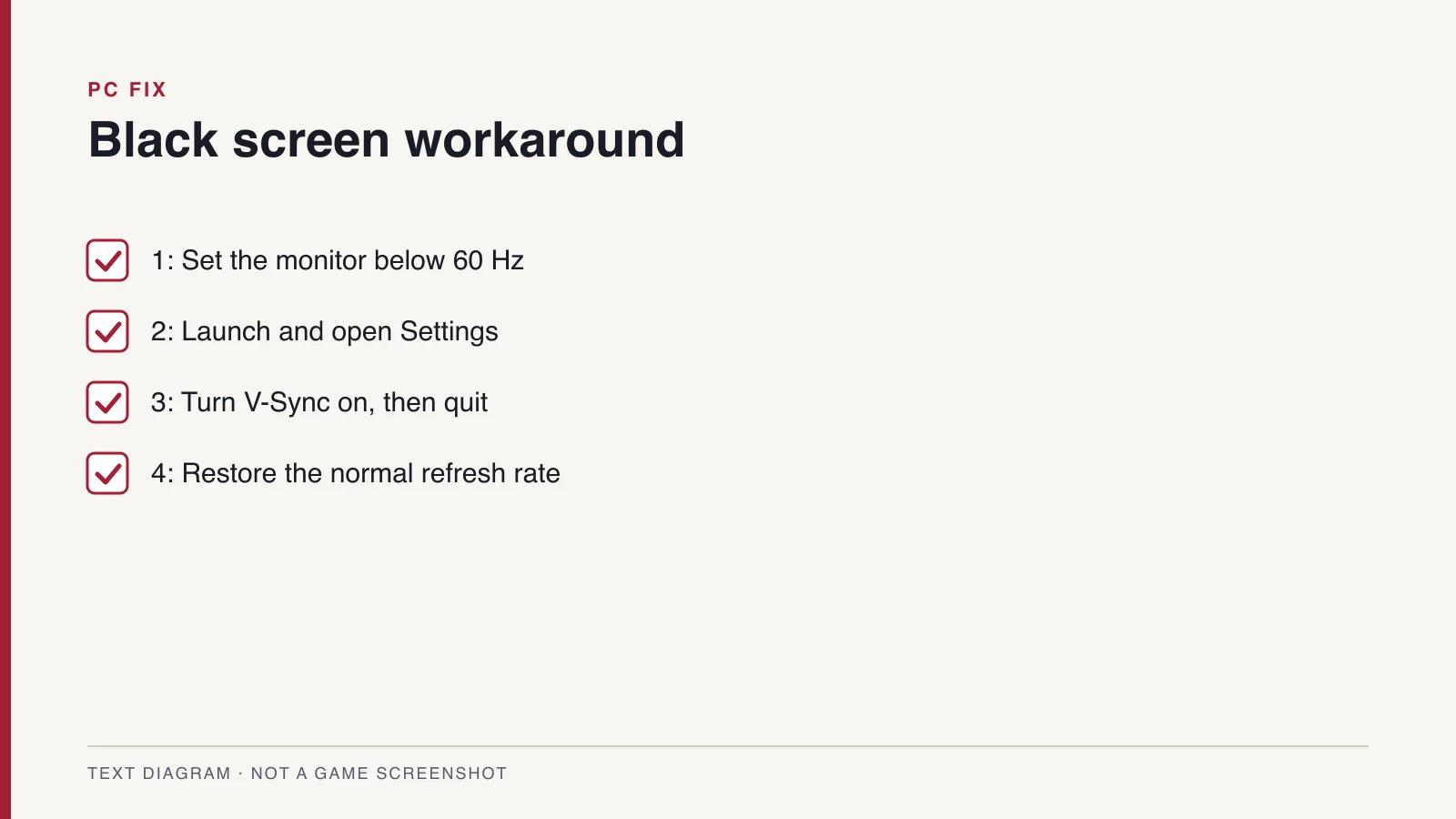
Konami's official workaround, step by step
The official fix lowers the refresh rate just long enough to get into the menu. Follow the steps in order and do not skip the last one. Konami specifies a rate below 60 Hz, not exactly 60 Hz.
- Right-click the desktop, open Display settings and choose Advanced display.
- Pick a refresh rate below 60 Hz for the monitor the game opens on.
- Launch the game and open Settings from the title screen.
- Turn V-Sync on under Video Settings, then close the game.
- Set the monitor back to its normal refresh rate and launch the game again.
Konami also suggests launching the game several times if the first attempt still hangs. If you have more than one display, make sure you change the rate on the screen the game actually uses. Unplugging a second monitor for the first launch can save some guesswork.
If your monitor has no option below 60 Hz
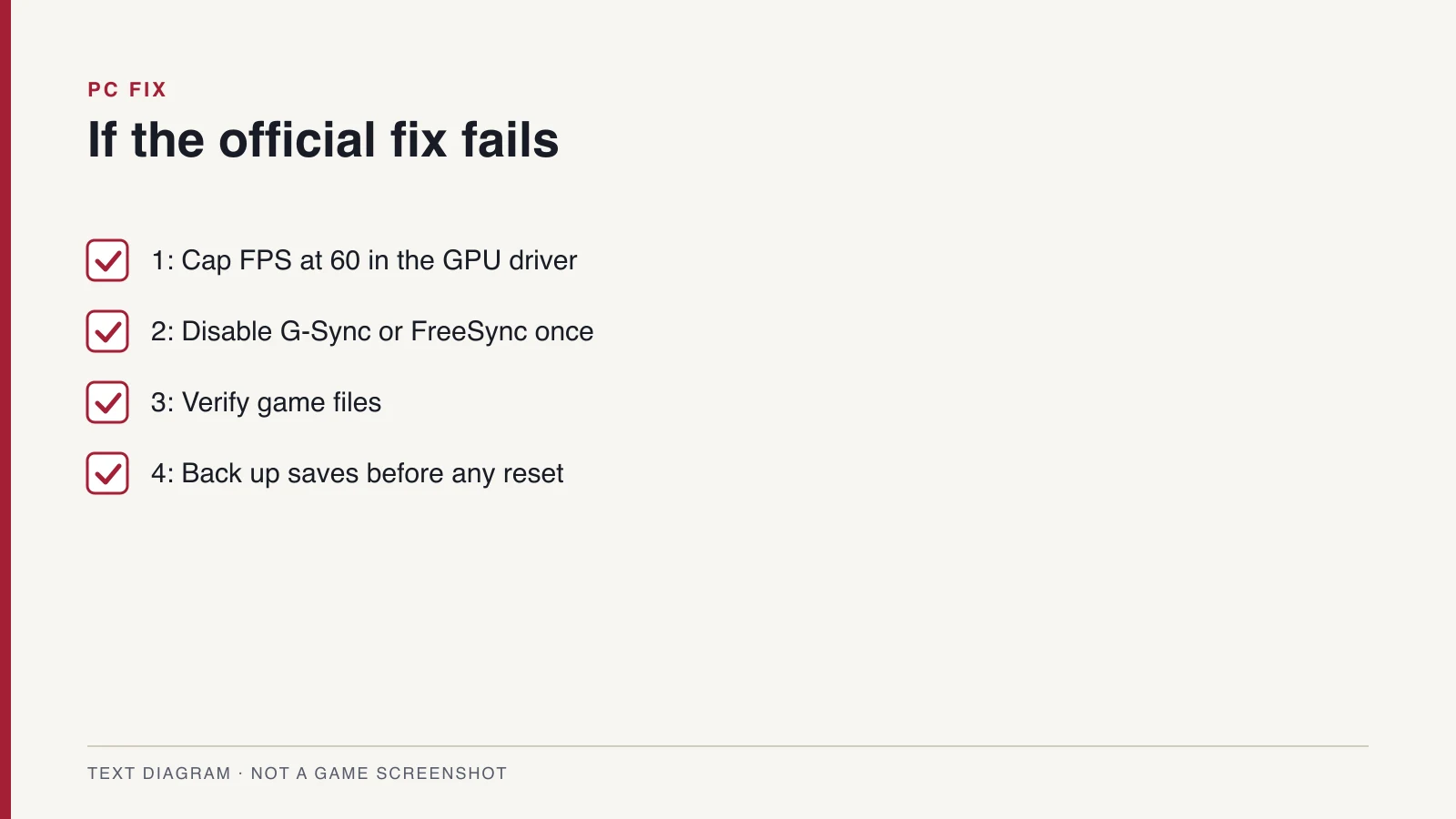
Many monitors and laptop panels list 60 Hz as their lowest rate, which blocks the official route. Players in the Steam discussions report a driver-side frame cap as the next best option. Konami has not confirmed it, so treat it as a community fix.
On NVIDIA cards, open the NVIDIA Control Panel and go to Manage 3D settings. Under Program Settings, add the game's executable, set Max Frame Rate to 60 and turn Vertical sync on. Apply the change, launch the game and then enable V-Sync inside the game as well.
On AMD cards, open Adrenalin and edit the game's own profile rather than the global one. Players report turning Enhanced Sync off and setting Wait for Vertical Refresh to Always On. Keeping these changes per game means other titles are not affected.
Other checks worth trying
Variable refresh rate can interfere with the first frame, so try disabling G-Sync or FreeSync for one launch. Steam's Verify integrity of game files option will replace any damaged files without touching your saves. Overlays from recording or chat apps are another common suspect on new releases.
- Update your graphics driver to the latest version from the vendor.
- Turn off G-Sync or FreeSync for a single test launch.
- Verify game files in Steam, or repair the game in the Xbox app.
- Disable third-party overlays and frame counters for the first launch.
- Change only one setting at a time and undo anything that does not help.
The one-change-at-a-time rule matters more than it sounds. If you flip five settings at once, you will not know which one fixed it or which one broke something else. Write down what you changed so you can restore it later.
Settings files and saves: be careful
Some community guides written for the demo suggest deleting a preferences file to reset video settings. That can work, but the same folders hold progress that matters. The demo save is designed to carry into the full game, so losing it costs more than a black screen.
If you decide to reset settings anyway, copy the whole save folder somewhere safe first. Space4Games also advises against deleting configuration or save data too early. Try the official steps and the driver cap before touching any files.
Our demo save transfer guide explains what carries over from the demo and what does not. Check it before cleaning out folders. A backup takes a minute and protects hours of play.
A different bug: the language softlock
Not every stuck screen is the V-Sync problem. Konami lists a separate issue where certain system languages, mainly Arabic, stop players from continuing after saving and returning to the title screen. That one affects PS5, Xbox Series X|S, Steam and Xbox on PC.
The temporary workaround is to switch the system or game language to a supported one such as English. Your progress is not lost, and you can switch back once a patch arrives. If your game loads fine the first time but fails after you return to the title, this is the likelier cause.
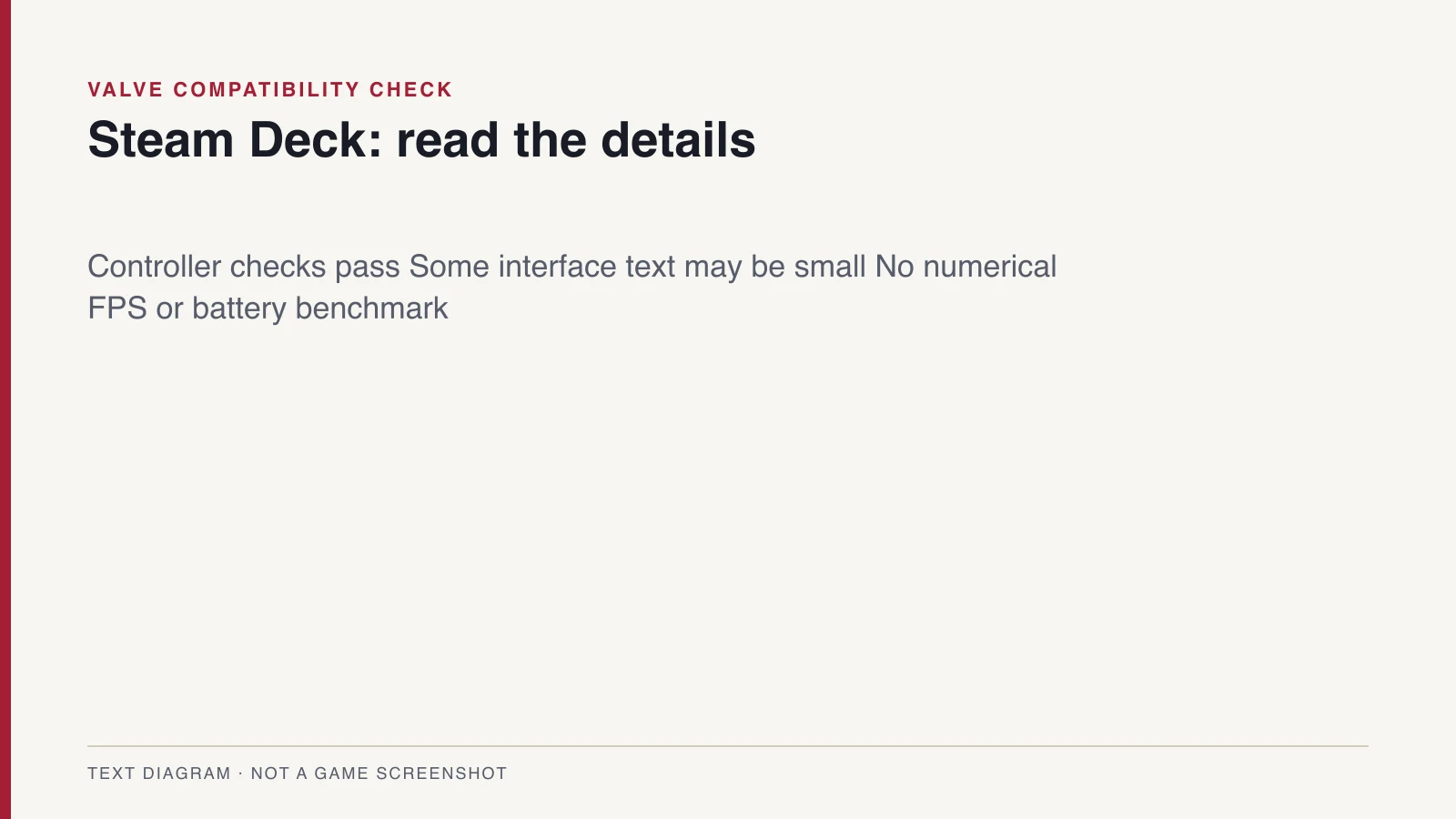
Steam Deck owners have their own reported issue with some interface elements displaying incorrectly. Konami says it is investigating that problem. Our Steam Deck guide covers the settings players use in the meantime.
Once the game launches: settings to keep
After the first successful launch, leave V-Sync on until a patch says otherwise. Switching back to an unlimited frame rate is the quickest way to bring the black screen back. If you want a higher frame rate, use a fixed cap such as 120 or 144 rather than Unlimited.
Players with high refresh monitors report the most trouble, which matches Konami's explanation. One community guide written for the demo suggests a refresh rate of 120 Hz or lower as a safer choice. Test a few values and keep the highest one that launches reliably.
If you changed driver settings to get in, you can usually leave them in place. A per-game frame cap does not affect other titles and costs almost nothing in a 2D game. Remove it later only if a patch note confirms the launch bug is fixed.
Is a patch coming?
Konami has said a patch is in development, but no release date had been announced when we checked. Until it lands, the V-Sync workaround remains the safest route. We will update this page once patch notes confirm the fix.
If nothing here works, contact Konami Customer Support with your graphics card, driver version and monitor model. Those three details help support staff match your case to known reports. Mention which of the steps above you already tried.
For the wider list of launch bugs and crashes, see our known issues page. Players deciding between platforms can compare the Steam version with the console releases. Console players do not face this particular black screen at all.
Frequently asked questions
- Why is Castlevania: Belmont's Curse a black screen on PC?
- Konami says it happens when V-Sync is off and the frame rate is Unlimited. Turning V-Sync on through the official workaround fixes it for most players.
- What if my monitor cannot go below 60 Hz?
- Players report capping the frame rate at 60 in the NVIDIA or AMD driver for the game only, then turning V-Sync on in the game.
- Does the black screen affect PS5, Xbox or Switch 2?
- No. Konami lists the black screen for the Steam and Xbox on PC versions only.
Sources and research date
This article uses the material retained in the October 24, 2026 research. Official descriptions, developer statements, and hands-on observations are identified in the section references. Details are scoped to those sources and are not a claim of independently completed retail testing.
- Space4Games: Belmont's Curse won't launch? Fix the PC black screen ↗
- Steam Community: black screen on launch workarounds ↗
- Sportskeeda: black screen error, possible fixes explored ↗
- Steam Community: black screen discussion ↗
 GuidesKnown Issues & Fixes
 PlatformsSteam & PC
 PlatformsSteam Deck
 GuidesDemo Save Transfer
 GuidesBeginner Guide